Upper Limb Action Editor
Applicable range: Tiankung Walker·Wujiang, Tiankung Walker·Wujie
Software environment: Orin, ROS2
Software version: V2.0.5.1 and above
Precautions
- When recording actions, please ensure that the motion control service has not been started, or the motion control service is in an open upper limb state, otherwise the upper limb will not be controlled
- Head and waist are not supported for recording by this tool
- Does not support frame-by-frame modification of recorded actions
- Currently the playback function does not support stopping action playback, so please do not record long action sequences
- When recording actions, please ensure that the start and end action positions are at the same position, otherwise, when multiple actions are played continuously, the robot's arm may experience frame skipping!
- During operation, please do not refresh the page, otherwise the page progress will be lost and the process will be blocked
- Currently there is no collision detection function for action playback, so please make sure that during the motion of the recorded action, there will be no collisions!!!
Running the program
1. Decompress and run run.sh on Orin
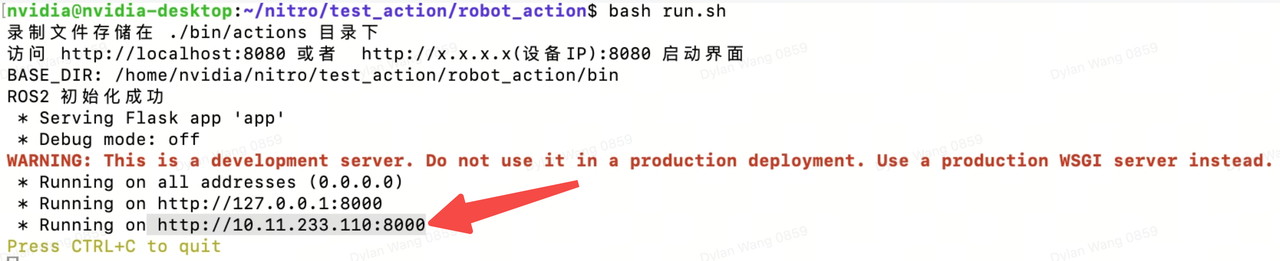
warning
If running reports an error, you may need to reinstall flask
pip install flask
2. According to the prompts, access the requested IP address
3. Enter the Orin IP, port 8000, to enter the action recording GUI interface
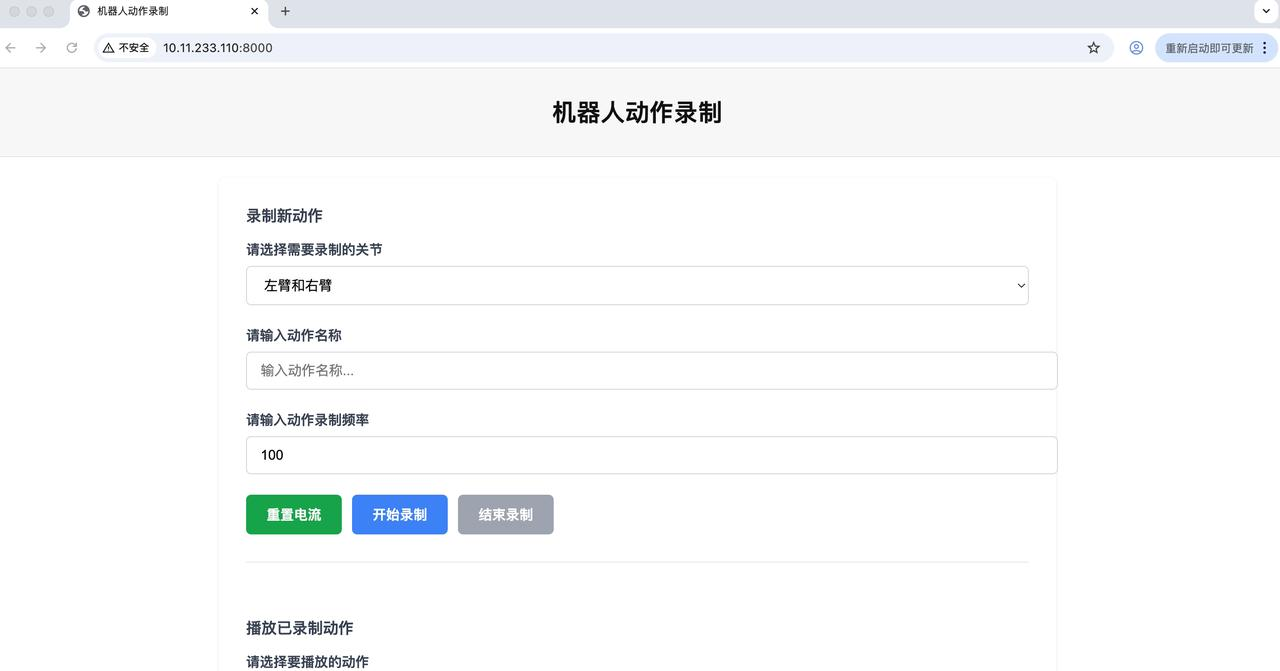
Usage Tutorial
Preparation work
- v2.0.4.6 and below
- v2.0.5.2 and above
Can only use this tool when only the main body service is started, so need to:
- SSH to the 41.1 x86 board, ensure the robot's autostart service is closed:
sudo systemctl status proc_manager.service - Check if the service status is disable, if not, manually disable:
Then power off and restart the entire robot, wait for the restart to complete.
sudo systemctl disable proc_manager.service - Manually start the main body_control service on the 41.1 x86 board:
sudo su
cd ros2ws
source install/setup.bash
ros2 launch body_control body.launch.py - Since only the main body service is started, the robot must be safely fixed on the moving platform.
- The robot starts normally until the robot lands and stands, can refer to 【Landing and Standing】.
- In robot standing mode, toggle the remote controller "F" lever down, long press A, hear a short beep, then enter half-body control mode.
Robot action recording
1. Recording a new action
- Select the joints to record•Left arm and right arm: default option, record bilateral overall actions•Left arm: only record left arm actions, can be used for subsequent action combinations•Right arm: only record right arm actions, can be used for subsequent action combinations
- Enter action nameAction file format: Action name_Recording frequency.json
- Enter recording frequencyDefault frequency is 100Hz
2. Recording process:
- Click the reset current button to set the arm current to zero, the arm is in movable state
- Click the start recording button to continuously record the arm status, move the arm to make actions
- Click the end recording button to complete recording
3. Playing recorded actions
- Select the action to play
- Enter play frequencyDefault 100Hz, it is recommended that the play frequency be the same as the recording frequency
- Whether to use maximum speedDefault is to play actions at maximum speed. When using maximum speed playback, the action speed will not be significantly higher than the recording speed, and the actions are smoother
- Enter play speed
- When not using maximum speed, can input, meaning n times the speed during recording
4. Combining recorded actions
- Select left arm action and right arm action respectively
- Click to load timeline
- Drag the action blocks on the timeline to change the timing of left arm and right action splicing
- Click combine action to save the spliced action file, can play after saving