8.10 Depth Camera
Starting the Orbbec Camera – ROS 2
Orbbec cameras are started by systemd services on the Orin board to which they are connected. Do not start these camera services on the x86 computer.
- Walker Tienkung · Embodied Intelligence
- Walker Tienkung · Voice & Vision
- Orin1 (
192.168.41.2): Start the head, waist, and back depth cameras.sudo systemctl start orbbec_head.service
sudo systemctl start orbbec_waist.service
sudo systemctl start orbbec_back.service
-
Orin1 (
192.168.41.2): Start the head depth camera.sudo systemctl start orbbec_head.service -
Orin2 (
192.168.41.3): Start the waist and back depth cameras.sudo systemctl start orbbec_waist.service
sudo systemctl start orbbec_back.service
Avoid subscribing to camera data from the x86 system whenever possible, as this can consume a large amount of bandwidth. In severe cases, it may affect ROS 2 communication and cause the robot to lose control.
Check topics
After startup, run ros2 node list to check the nodes, run ros2 node info to check informations of the nodes.
By default, the following Topics are published:
# head camera
/ob_camera_head/color/camera_info: sensor_msgs/msg/CameraInfo
/ob_camera_head/color/image_raw: sensor_msgs/msg/Image
/ob_camera_head/color/image_raw/compressed: sensor_msgs/msg/CompressedImage
/ob_camera_head/color/image_raw/theora: theora_image_transport/msg/Packet
/ob_camera_head/color/metadata: orbbec_camera_msgs/msg/Metadata
/ob_camera_head/depth/camera_info: sensor_msgs/msg/CameraInfo
/ob_camera_head/depth/image_raw: sensor_msgs/msg/Image
/ob_camera_head/depth/image_raw/compressedDepth: sensor_msgs/msg/CompressedImage
/ob_camera_head/depth/metadata: orbbec_camera_msgs/msg/Metadata
/ob_camera_head/depth_filter_status: std_msgs/msg/String
/ob_camera_head/device_status: std_msgs/msg/String

# waist camera
/ob_camera_waist/color/camera_info: sensor_msgs/msg/CameraInfo
/ob_camera_waist/color/image_raw: sensor_msgs/msg/Image
/ob_camera_waist/color/metadata: orbbec_camera_msgs/msg/Metadata
/ob_camera_waist/depth/camera_info: sensor_msgs/msg/CameraInfo
/ob_camera_waist/depth/image_raw: sensor_msgs/msg/Image
/ob_camera_waist/depth/metadata: orbbec_camera_msgs/msg/Metadata
/ob_camera_waist/depth_filter_status: std_msgs/msg/String
/ob_camera_waist/device_status: std_msgs/msg/String

# back camera
/ob_camera_back/color/camera_info: sensor_msgs/msg/CameraInfo
/ob_camera_back/color/image_raw: sensor_msgs/msg/Image
/ob_camera_back/color/metadata: orbbec_camera_msgs/msg/Metadata
/ob_camera_back/depth/camera_info: sensor_msgs/msg/CameraInfo
/ob_camera_back/depth/image_raw: sensor_msgs/msg/Image
/ob_camera_back/depth/metadata: orbbec_camera_msgs/msg/Metadata
/ob_camera_back/depth_filter_status: std_msgs/msg/String
/ob_camera_back/device_status: std_msgs/msg/String
By default, the following Services are provided:
/ob_camera_head/ob_camera_head/describe_parameters: rcl_interfaces/srv/DescribeParameters
/ob_camera_head/ob_camera_head/get_parameter_types: rcl_interfaces/srv/GetParameterTypes
/ob_camera_head/ob_camera_head/get_parameters: rcl_interfaces/srv/GetParameters
/ob_camera_head/ob_camera_head/list_parameters: rcl_interfaces/srv/ListParameters
/ob_camera_head/ob_camera_head/set_parameters: rcl_interfaces/srv/SetParameters
/ob_camera_head/ob_camera_head/set_parameters_atomically: rcl_interfaces/srv/SetParametersAtomically
/ob_camera_head/get_auto_white_balance: orbbec_camera_msgs/srv/GetInt32
/ob_camera_head/get_color_exposure: orbbec_camera_msgs/srv/GetInt32
/ob_camera_head/get_color_gain: orbbec_camera_msgs/srv/GetInt32
/ob_camera_head/get_depth_exposure: orbbec_camera_msgs/srv/GetInt32
/ob_camera_head/get_depth_gain: orbbec_camera_msgs/srv/GetInt32
/ob_camera_head/get_device_info: orbbec_camera_msgs/srv/GetDeviceInfo
/ob_camera_head/get_ldp_status: orbbec_camera_msgs/srv/GetBool
/ob_camera_head/get_lrm_measure_distance: orbbec_camera_msgs/srv/GetInt32
/ob_camera_head/get_ptp_config: orbbec_camera_msgs/srv/GetPTPConfig
/ob_camera_head/get_sdk_version: orbbec_camera_msgs/srv/GetString
/ob_camera_head/get_streams_enable: orbbec_camera_msgs/srv/GetStreamsEnable
/ob_camera_head/get_user_calib_params: orbbec_camera_msgs/srv/GetString
/ob_camera_head/get_white_balance: orbbec_camera_msgs/srv/GetInt32
/ob_camera_head/read_customer_data: orbbec_camera_msgs/srv/GetString
/ob_camera_head/reboot_device: std_srvs/srv/Empty
/ob_camera_head/save_images: std_srvs/srv/Empty
/ob_camera_head/save_point_cloud: std_srvs/srv/Empty
/ob_camera_head/send_software_trigger: std_srvs/srv/Empty
/ob_camera_head/set_auto_white_balance: std_srvs/srv/SetBool
/ob_camera_head/set_color_ae_roi: orbbec_camera_msgs/srv/SetArrays
/ob_camera_head/set_color_auto_exposure: std_srvs/srv/SetBool
/ob_camera_head/set_color_exposure: orbbec_camera_msgs/srv/SetInt32
/ob_camera_head/set_color_flip: std_srvs/srv/SetBool
/ob_camera_head/set_color_gain: orbbec_camera_msgs/srv/SetInt32
/ob_camera_head/set_color_mirror: std_srvs/srv/SetBool
/ob_camera_head/set_color_rotation: orbbec_camera_msgs/srv/SetInt32
/ob_camera_head/set_depth_ae_roi: orbbec_camera_msgs/srv/SetArrays
/ob_camera_head/set_depth_auto_exposure: std_srvs/srv/SetBool
/ob_camera_head/set_depth_exposure: orbbec_camera_msgs/srv/SetInt32
/ob_camera_head/set_depth_flip: std_srvs/srv/SetBool
/ob_camera_head/set_depth_gain: orbbec_camera_msgs/srv/SetInt32
/ob_camera_head/set_depth_mirror: std_srvs/srv/SetBool
/ob_camera_head/set_depth_rotation: orbbec_camera_msgs/srv/SetInt32
/ob_camera_head/set_fan_work_mode: orbbec_camera_msgs/srv/SetInt32
/ob_camera_head/set_filter: orbbec_camera_msgs/srv/SetFilter
/ob_camera_head/set_floor_enable: std_srvs/srv/SetBool
/ob_camera_head/set_ir_long_exposure: std_srvs/srv/SetBool
/ob_camera_head/set_laser_enable: std_srvs/srv/SetBool
/ob_camera_head/set_ldp_enable: std_srvs/srv/SetBool
/ob_camera_head/set_ptp_config: orbbec_camera_msgs/srv/SetPTPConfig
/ob_camera_head/set_reset_timestamp: std_srvs/srv/SetBool
/ob_camera_head/set_streams_enable: orbbec_camera_msgs/srv/SetStreamsEnable
/ob_camera_head/set_sync_hosttime: std_srvs/srv/SetBool
/ob_camera_head/set_sync_interleaverlaser: orbbec_camera_msgs/srv/SetInt32
/ob_camera_head/set_user_calib_params: orbbec_camera_msgs/srv/SetString
/ob_camera_head/set_white_balance: orbbec_camera_msgs/srv/SetInt32
/ob_camera_head/switch_ir: orbbec_camera_msgs/srv/SetString
/ob_camera_head/toggle_color: std_srvs/srv/SetBool
/ob_camera_head/toggle_depth: std_srvs/srv/SetBool
/ob_camera_head/write_customer_data: orbbec_camera_msgs/srv/SetString
View the camera feed
You can use rviz2 to view the camera’s real-time feed.
Transmitting real-time color camera images consumes a large amount of bandwidth. It is best to use a direct wired (Ethernet) connection; otherwise, severe lag will occur.
Here it is assumed that you have opened the camera on 192.168.41.2.
-
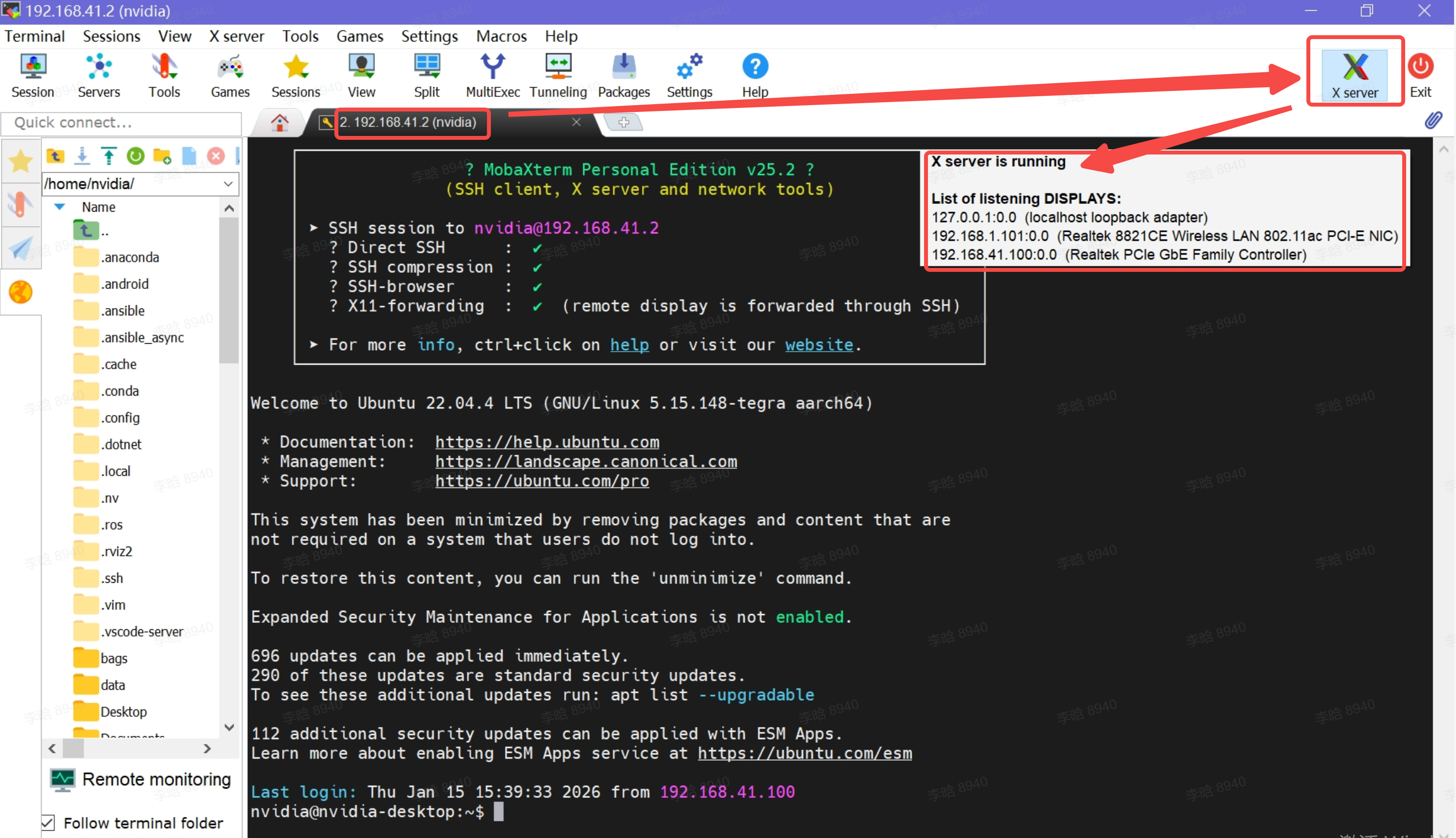
Use MobaXterm (the free version is sufficient) to connect to 192.168.41.2, and click the X server icon in the upper-right corner of MobaXterm to ensure that the X server is running (make sure the marked area shows “X server is running”).
-
In the MobaXterm command line, enter the
rviz2command:
-
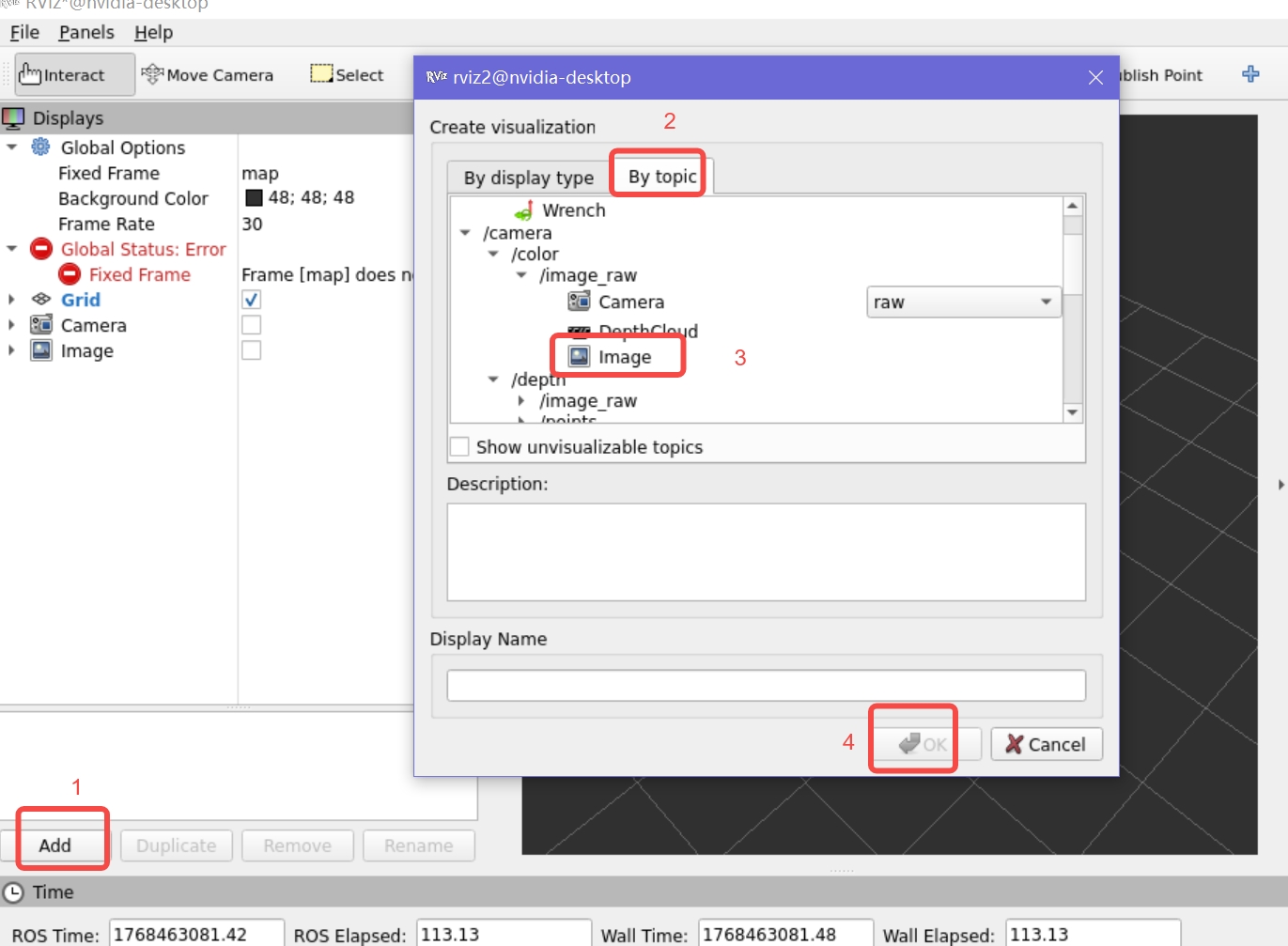
In the pop-up RViz window, select the camera topic you want to view:
-
You can see the camera’s real-time feed in the lower-right corner of the RViz window.
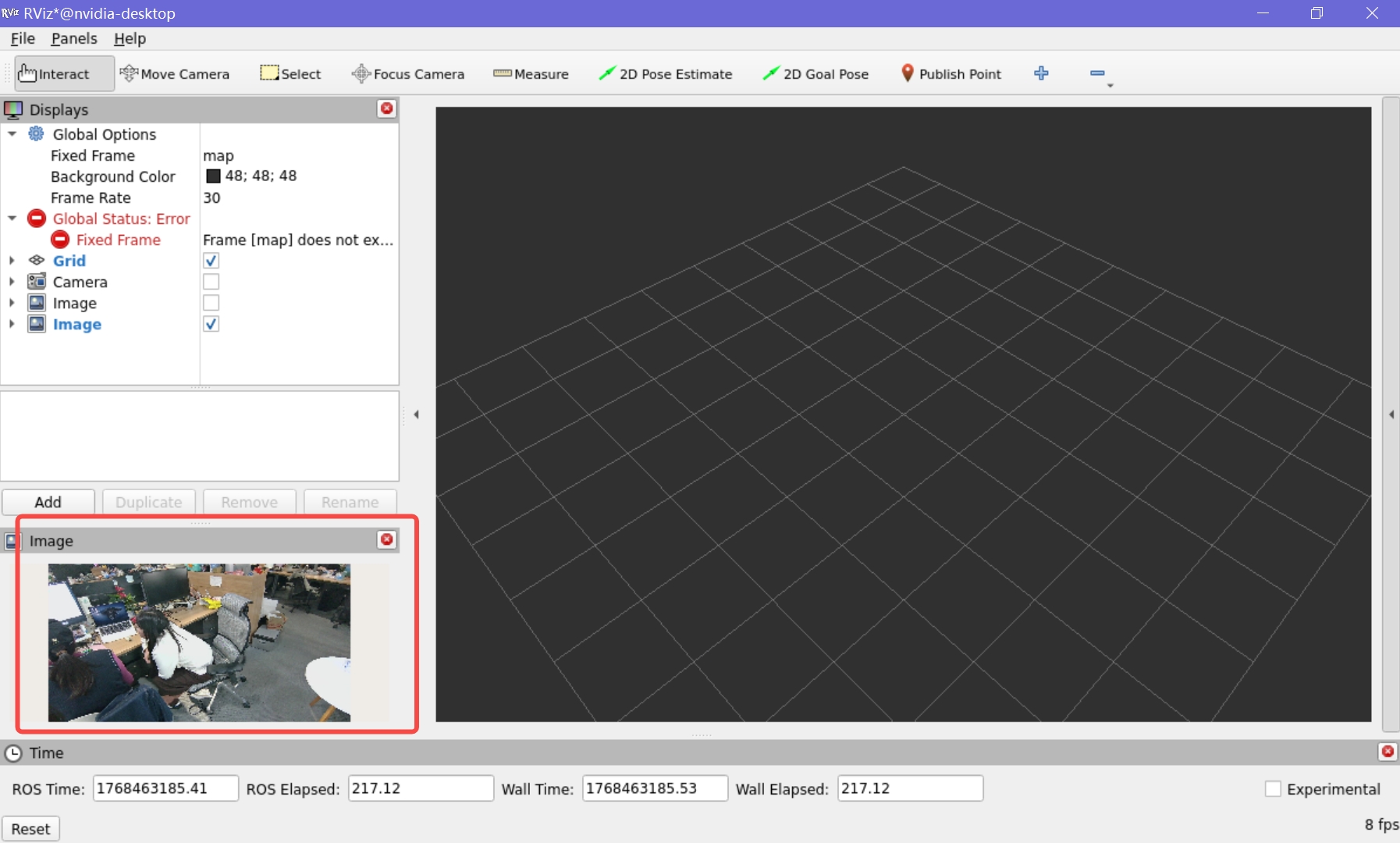
You can also use ros2 run rqt_image_view rqt_image_view command to view the images of camera.
Troubleshooting
If the following error appears in the output when starting the camera service:
Failed to initialize device unexpected isp firmware version, please update your camera firmware before streaming data.
And:
-
The camera service fails to start successfully, no image is visible in rviz2, and although the camera topics can be seen using
ros2 topic list, there is actually no data being published. -
Without starting the camera service, you can directly connect to the Orin board using MobaXterm and run the
OrbbecViewercommand (enterOrbbecViewerin the same command line where you would runrviz2) to view the camera. The camera image can be opened and viewed normally.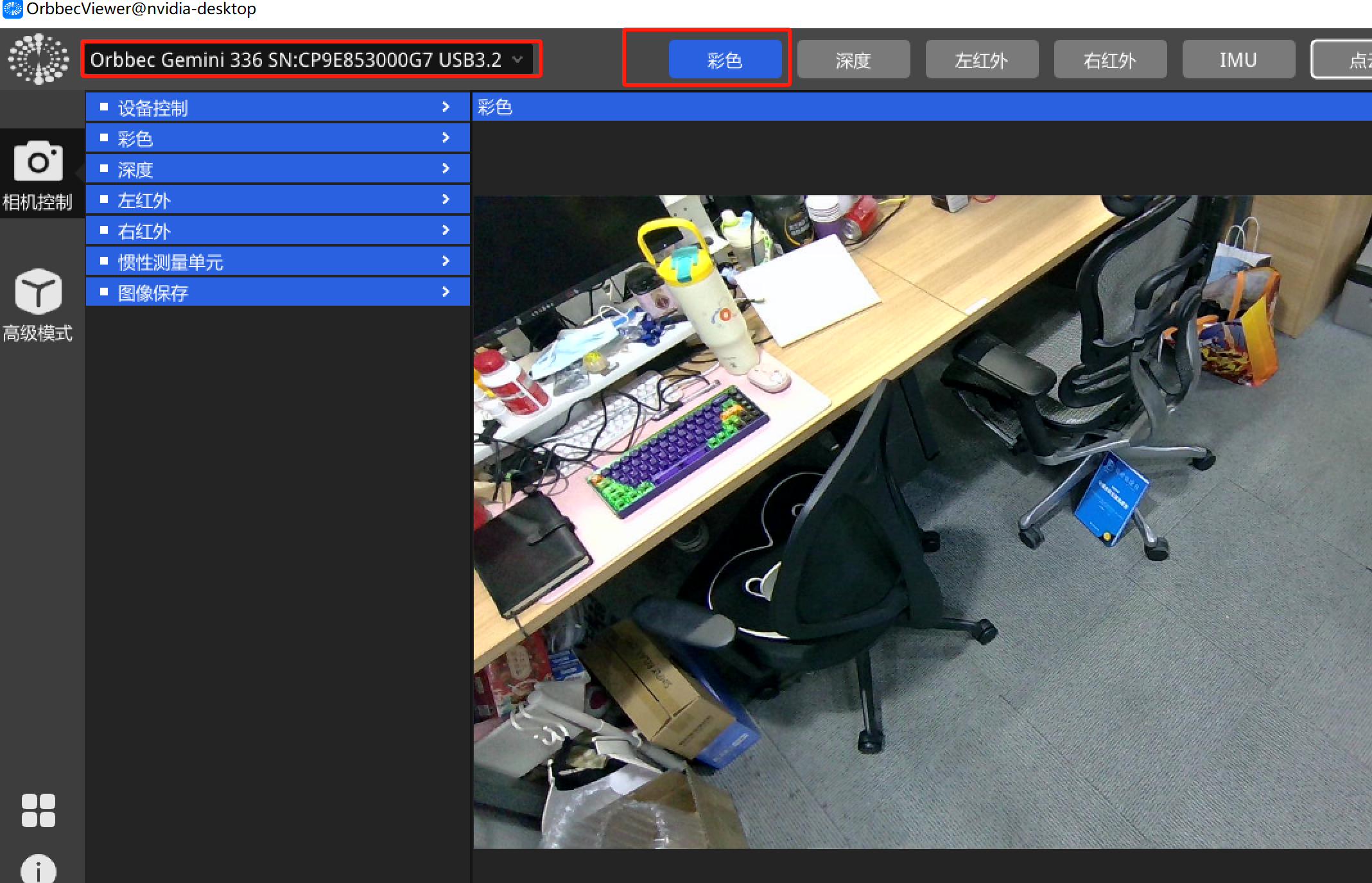
There is a notification in the upper-right corner of the OrbbecViewer pop-up window: ISP固件需要升级”
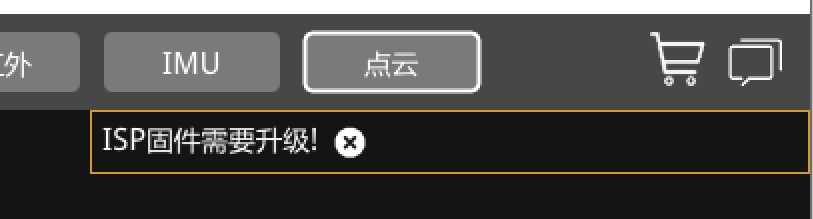
In this case, it is likely that the camera firmware version is incorrect.
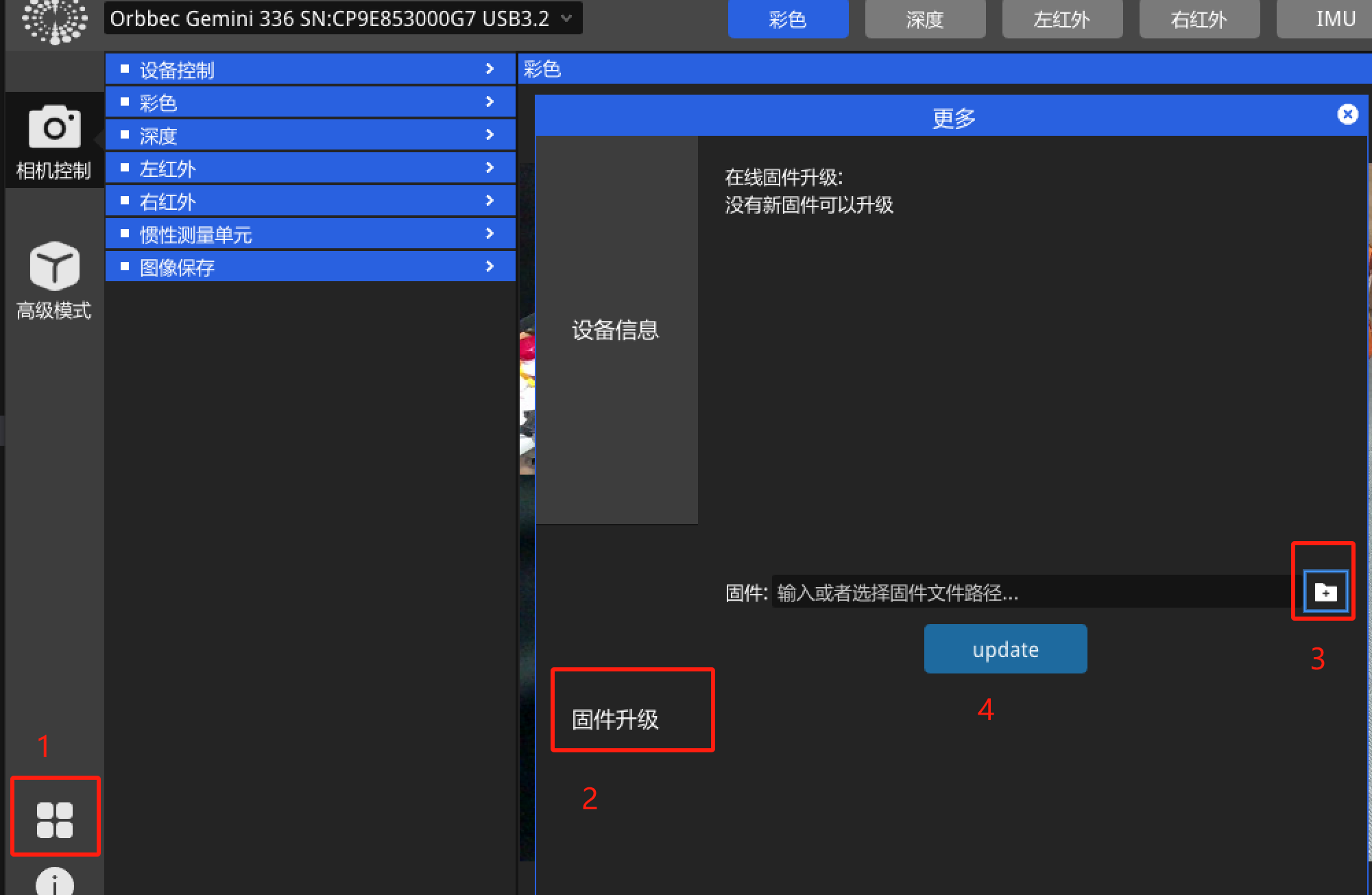
You can try upgrading to a specific firmware version as follows (taking the Orin board at 192.168.41.2 as an example):
-
Still open OrbbecViewer as described above, then follow the steps below (note: first operate only up to step 3, after which you need to select the firmware file):
-
Select the firmware file:
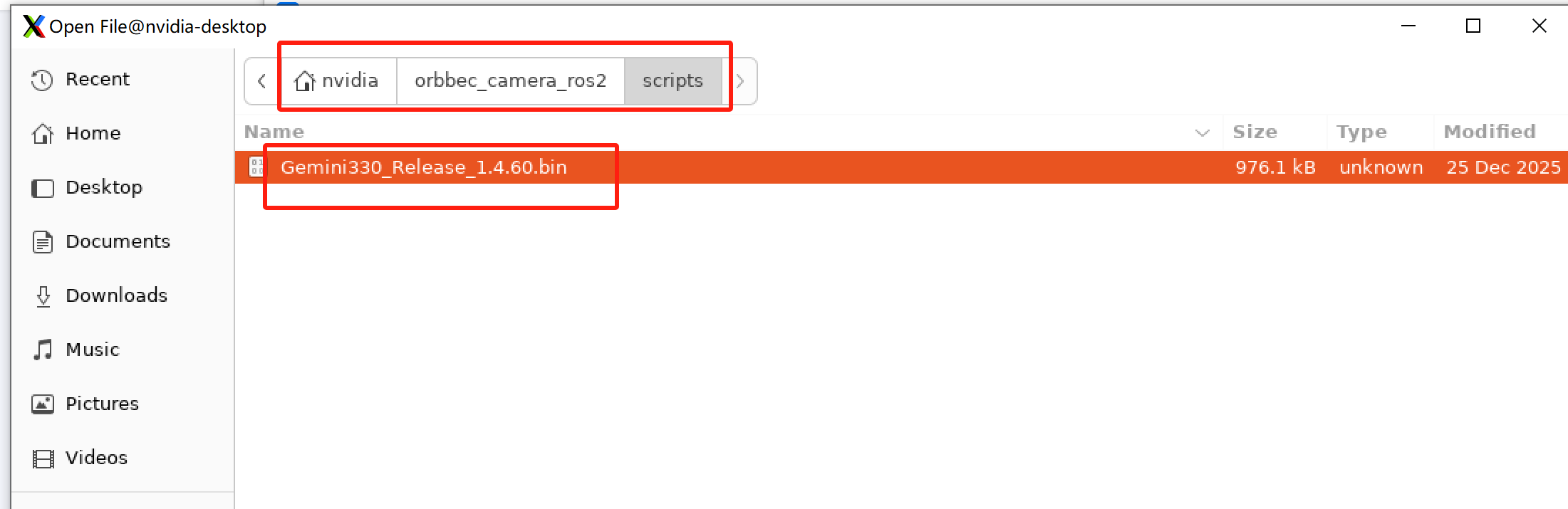
-
Click the button labeled “4” in the image for Step 1 to start the update. Wait for the update to complete, then try starting the camera service again.