Pico Operation Guide
This document describes the general Pico operation flow and notes during Thinker studio teleoperation. The service names to be started in the Thinker studio client differ by robot model; please refer to the corresponding model's operation guide for details.
Start Pico Body Tracking
Complete the following steps on the Pico side:
- Wear and secure the leg and waist trackers.
- Turn on the body trackers.
- Complete tracker pairing.
- Complete tracker calibration.
After calibration, the character movements in the Pico view should mirror the wearer's movements.
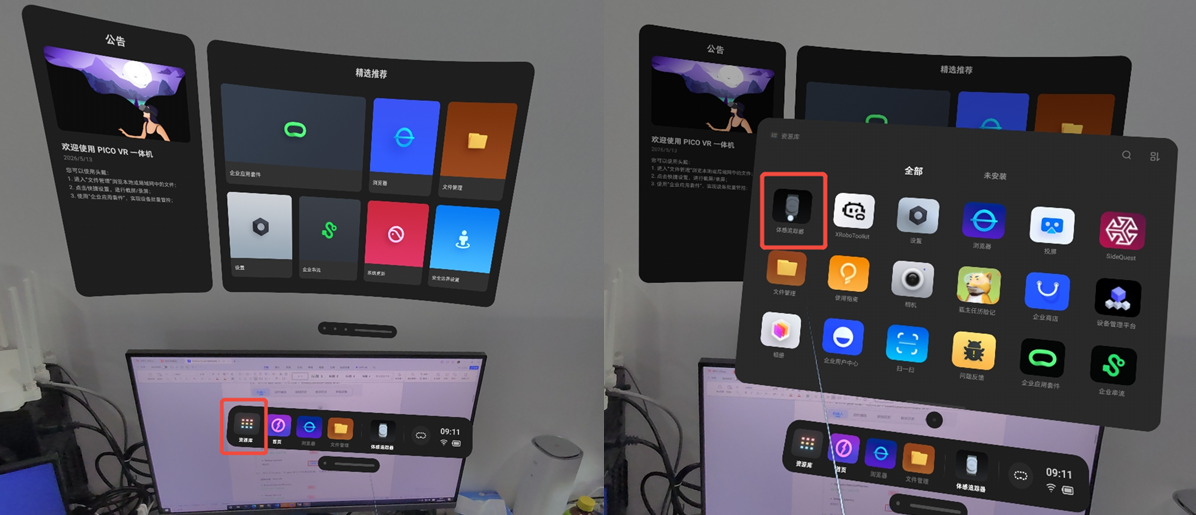 Pico tracker connection
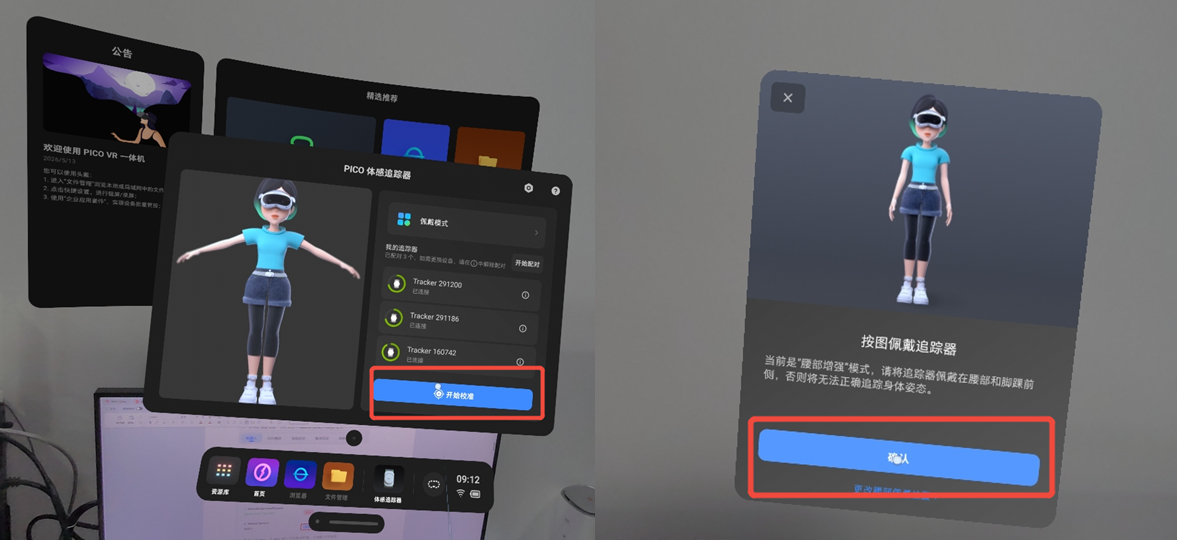 Pico tracker calibration
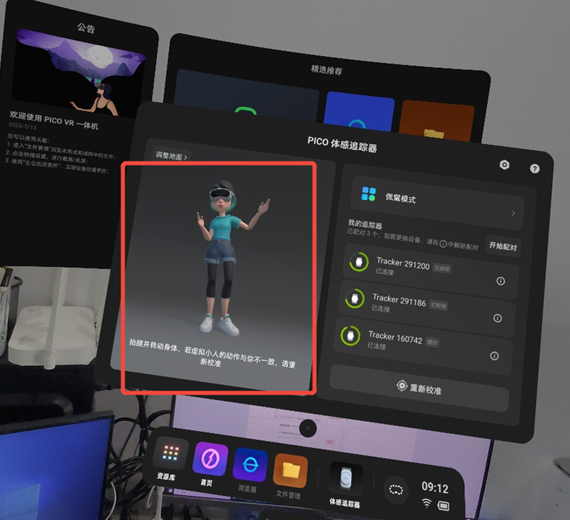 Pico calibration completed
Open XRoboToolkit and Connect
Open XRoboToolkit on the Pico side and complete the connection.
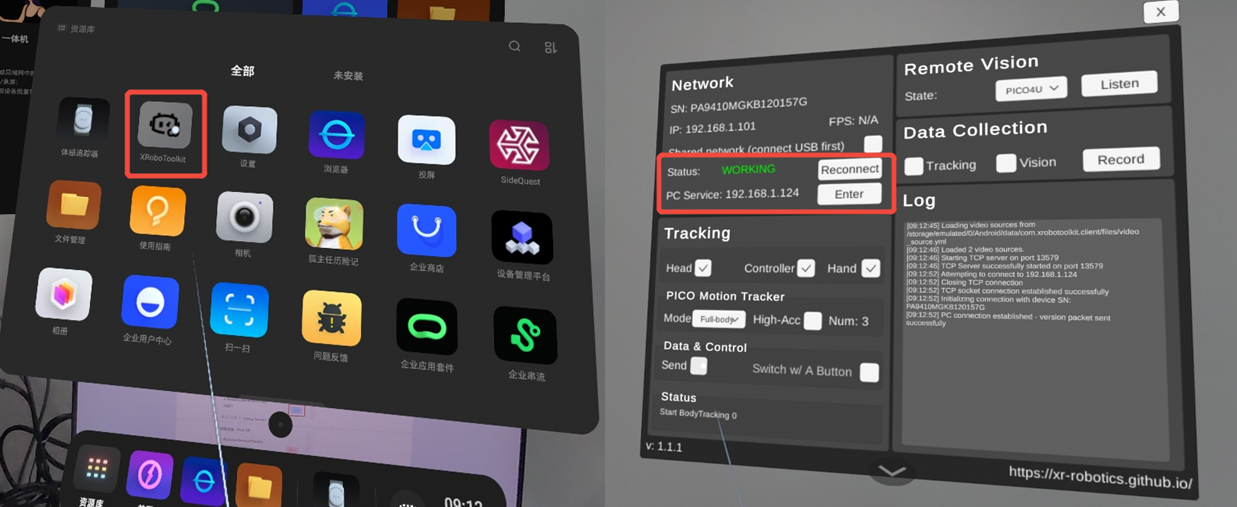 XRoboToolkit connection page
After connecting, check the tracking items as needed in the Tracking area.
- Walker Tienkung / Walker Tienkung DEX: Select
Head,Controller, andHand; setModetoFull-body. - Walker S2 EDU Explorer: Select
HeadandController.
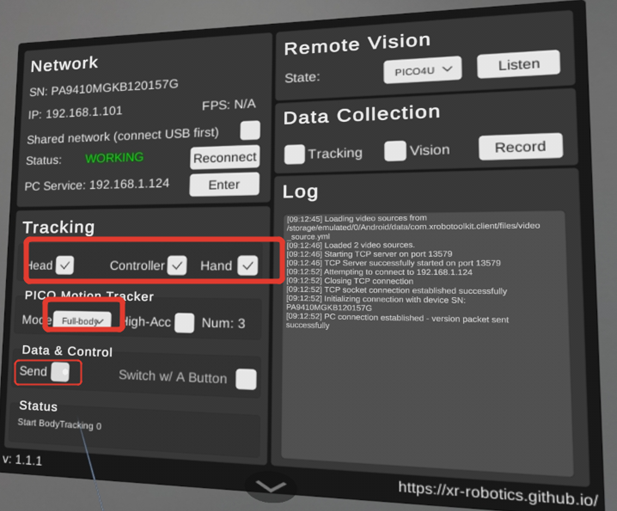 XRoboToolkit Tracking configuration
Control Data Sending
In the Data & Control area, the Send checkbox controls whether Pico sends control data to the target machine:
- Check
Send: Pico starts sending control data. - Uncheck
Send: Pico stops sending control data, and the robot will no longer follow the Pico operator's movements.
When Send is checked, the corresponding service on the target machine will receive Pico data and display that the connection has been established.
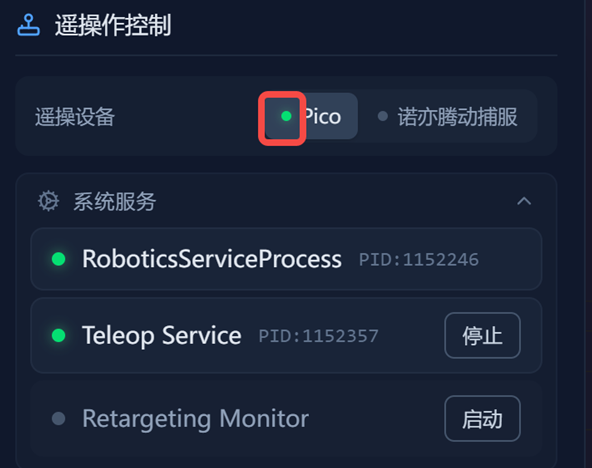 Service receiving Pico data
Pico Controller Button Functions
Controller button functions vary slightly by model. Please operate according to the actual model.
Walker Tienkung / Walker Tienkung DEX
Y: Start/pause teleoperation.Trigger: Grasp.Grip: Release.
Walker S2 EDU Explorer
Y: Switch to teleoperation mode.Grip: Hold to follow; release to disconnect following.Trigger: Hold to close the gripper; release to open the gripper.A: Robot homing.
Ending Teleoperation
When ending teleoperation, if you need to pause Pico control data sending, you can uncheck Send under Data & Control in XRoboToolkit on the Pico side.
FAQs
Pico is connected but the robot does not follow movements
Check whether Send under Data & Control in XRoboToolkit on the Pico side is checked.
When Send is not checked, Pico will not send control data.
Robot movements do not match reality (S2)
Long-press the right controller home button to recalibrate.