8.10 Depth Camera
Starting the Orbbec Camera – ROS 2
- Walker Tienkung · Embodied Intelligence
- Walker Tienkung · Voice & Vision
-
LLM Orin(192.168.41.2): Start the depth camera connected to 41.2, which is the head-mounted depth camera.
cd /home/nvidia/orbbec_camera_ros2
source install/setup.bash
ros2 launch orbbec_camera gemini_330_series.launch.py -
Navigation Orin(192.168.41.3): Start the depth cameras connected to 41.3, that is, the depth cameras on other parts of the robot besides the head.
cd /home/nvidia/orbbec_camera_ros2
source install/setup.bash
ros2 launch orbbec_camera slam_330.launch.py
-
Orin(192.168.41.2): Since there is only one Orin board, all depth cameras are connected to this Orin board.
cd /home/nvidia/orbbec_camera_ros2
source install/setup.bash
ros2 launch orbbec_camera slam_330.launch.py
Avoid subscribing to camera data from the x86 system whenever possible, as this can consume a large amount of bandwidth. In severe cases, it may affect ROS 2 communication and cause the robot to lose control.
Check topics
After startup, run ros2 node list to verify that a new /camera/camera node has appeared. Use ros2 node info /camera/camera to view detailed node information.
By default, the following Topics are published:
/camera/color/camera_info: sensor_msgs/msg/CameraInfo
/camera/color/image_raw: sensor_msgs/msg/Image
/camera/color/metadata: orbbec_camera_msgs/msg/Metadata
/camera/depth/camera_info: sensor_msgs/msg/CameraInfo
/camera/depth/image_raw: sensor_msgs/msg/Image
/camera/depth/metadata: orbbec_camera_msgs/msg/Metadata
/camera/depth/points: sensor_msgs/msg/PointCloud2
/camera/depth_filter_status: std_msgs/msg/String
/camera/depth_to_color: orbbec_camera_msgs/msg/Extrinsics
/diagnostics: diagnostic_msgs/msg/DiagnosticArray
/parameter_events: rcl_interfaces/msg/ParameterEvent
/rosout: rcl_interfaces/msg/Log
/tf: tf2_msgs/msg/TFMessage
/tf_static: tf2_msgs/msg/TFMessage
By default, the following Services are provided:
/camera/camera/describe_parameters: rcl_interfaces/srv/DescribeParameters
/camera/camera/get_parameter_types: rcl_interfaces/srv/GetParameterTypes
/camera/camera/get_parameters: rcl_interfaces/srv/GetParameters
/camera/camera/list_parameters: rcl_interfaces/srv/ListParameters
/camera/camera/set_parameters: rcl_interfaces/srv/SetParameters
/camera/camera/set_parameters_atomically: rcl_interfaces/srv/SetParametersAtomically
/camera/get_auto_white_balance: orbbec_camera_msgs/srv/GetInt32
/camera/get_color_exposure: orbbec_camera_msgs/srv/GetInt32
/camera/get_color_gain: orbbec_camera_msgs/srv/GetInt32
/camera/get_depth_exposure: orbbec_camera_msgs/srv/GetInt32
/camera/get_depth_gain: orbbec_camera_msgs/srv/GetInt32
/camera/get_device_info: orbbec_camera_msgs/srv/GetDeviceInfo
/camera/get_ldp_status: orbbec_camera_msgs/srv/GetBool
/camera/get_lrm_measure_distance: orbbec_camera_msgs/srv/GetInt32
/camera/get_sdk_version: orbbec_camera_msgs/srv/GetString
/camera/get_white_balance: orbbec_camera_msgs/srv/GetInt32
/camera/reboot_device: std_srvs/srv/Empty
/camera/save_images: std_srvs/srv/Empty
/camera/save_point_cloud: std_srvs/srv/Empty
/camera/set_auto_white_balance: std_srvs/srv/SetBool
/camera/set_color_ae_roi: orbbec_camera_msgs/srv/SetArrays
/camera/set_color_auto_exposure: std_srvs/srv/SetBool
/camera/set_color_exposure: orbbec_camera_msgs/srv/SetInt32
/camera/set_color_flip: std_srvs/srv/SetBool
/camera/set_color_gain: orbbec_camera_msgs/srv/SetInt32
/camera/set_color_mirror: std_srvs/srv/SetBool
/camera/set_color_rotation: orbbec_camera_msgs/srv/SetInt32
/camera/set_depth_ae_roi: orbbec_camera_msgs/srv/SetArrays
/camera/set_depth_auto_exposure: std_srvs/srv/SetBool
/camera/set_depth_exposure: orbbec_camera_msgs/srv/SetInt32
/camera/set_depth_flip: std_srvs/srv/SetBool
/camera/set_depth_gain: orbbec_camera_msgs/srv/SetInt32
/camera/set_depth_mirror: std_srvs/srv/SetBool
/camera/set_depth_rotation: orbbec_camera_msgs/srv/SetInt32
/camera/set_fan_work_mode: orbbec_camera_msgs/srv/SetInt32
/camera/set_filter: orbbec_camera_msgs/srv/SetFilter
/camera/set_floor_enable: std_srvs/srv/SetBool
/camera/set_ir_long_exposure: std_srvs/srv/SetBool
/camera/set_laser_enable: std_srvs/srv/SetBool
/camera/set_ldp_enable: std_srvs/srv/SetBool
/camera/set_read_customer_data: orbbec_camera_msgs/srv/SetString
/camera/set_reset_timestamp: std_srvs/srv/SetBool
/camera/set_sync_hosttime: std_srvs/srv/SetBool
/camera/set_sync_interleaverlaser: orbbec_camera_msgs/srv/SetInt32
/camera/set_white_balance: orbbec_camera_msgs/srv/SetInt32
/camera/set_write_customer_data: orbbec_camera_msgs/srv/SetString
/camera/switch_ir: orbbec_camera_msgs/srv/SetString
/camera/toggle_color: std_srvs/srv/SetBool
/camera/toggle_depth: std_srvs/srv/SetBool
View the camera feed
You can use rviz2 to view the camera’s real-time feed.
Transmitting real-time color camera images consumes a large amount of bandwidth. It is best to use a direct wired (Ethernet) connection; otherwise, severe lag will occur.
Here it is assumed that you have opened the camera on 192.168.41.2.
-
Use MobaXterm (the free version is sufficient) to connect to 192.168.41.2, and click the X server icon in the upper-right corner of MobaXterm to ensure that the X server is running (make sure the marked area shows “X server is running”).
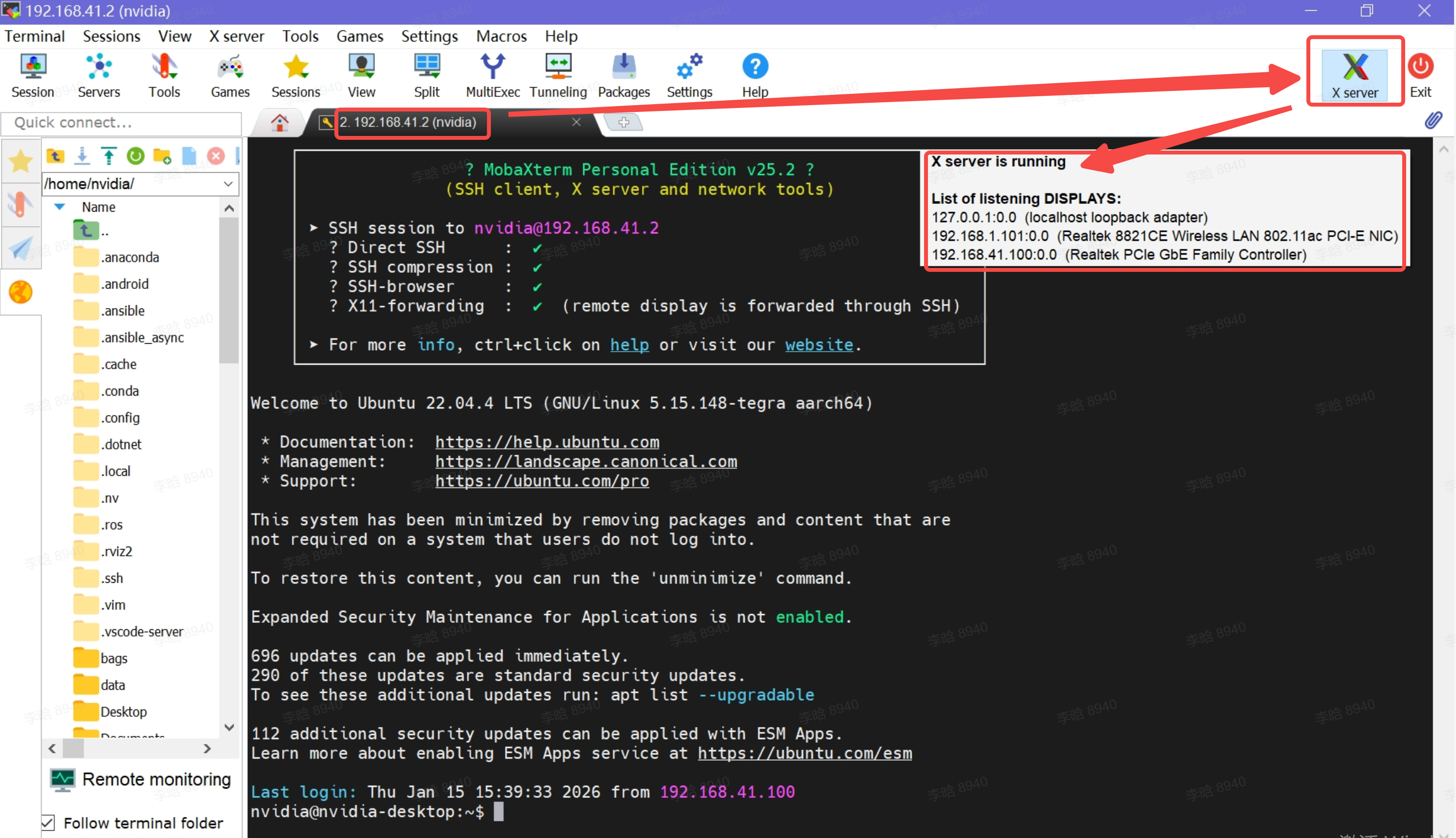
-
In the MobaXterm command line, enter the
rviz2command:
-
In the pop-up RViz window, select the camera topic you want to view:
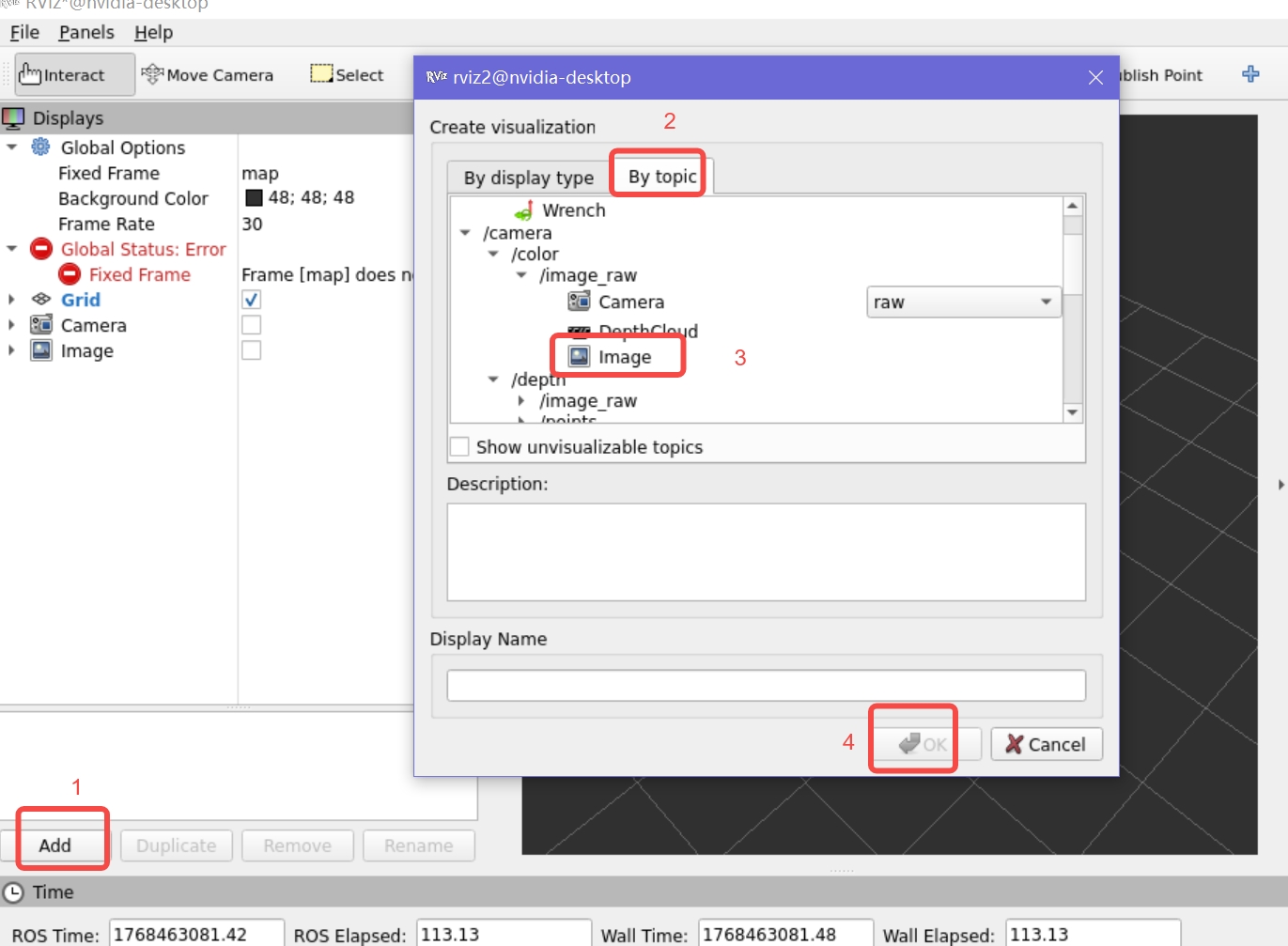
-
You can see the camera’s real-time feed in the lower-right corner of the RViz window.
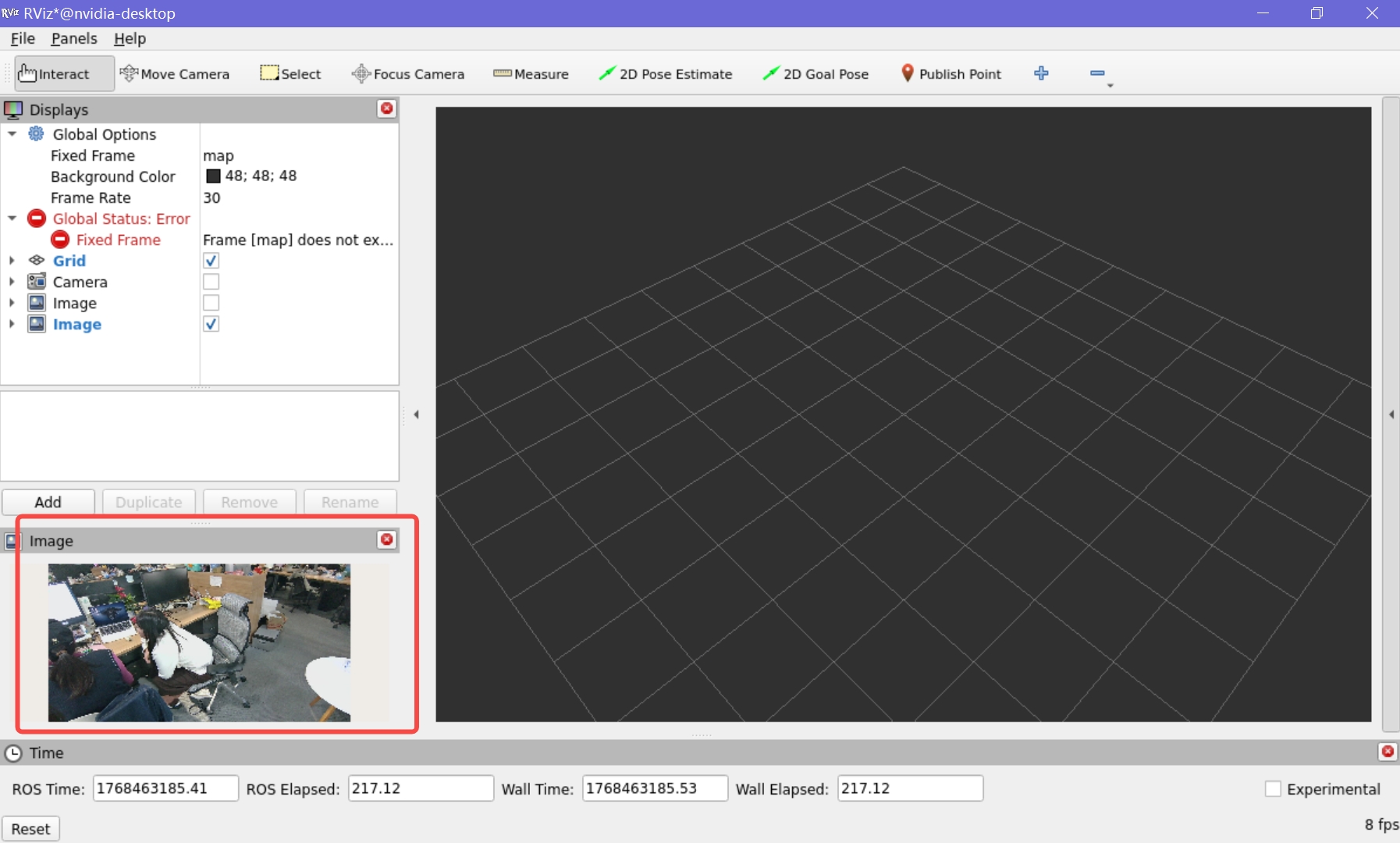
You can also use ros2 run rqt_image_view rqt_image_view command to view the images of camera.
Troubleshooting
If the following error appears in the output when starting the camera service:
Failed to initialize device unexpected isp firmware version, please update your camera firmware before streaming data.
And:
-
The camera service fails to start successfully, no image is visible in rviz2, and although the camera topics can be seen using
ros2 topic list, there is actually no data being published. -
Without starting the camera service, you can directly connect to the Orin board using MobaXterm and run the
OrbbecViewercommand (enterOrbbecViewerin the same command line where you would runrviz2) to view the camera. The camera image can be opened and viewed normally.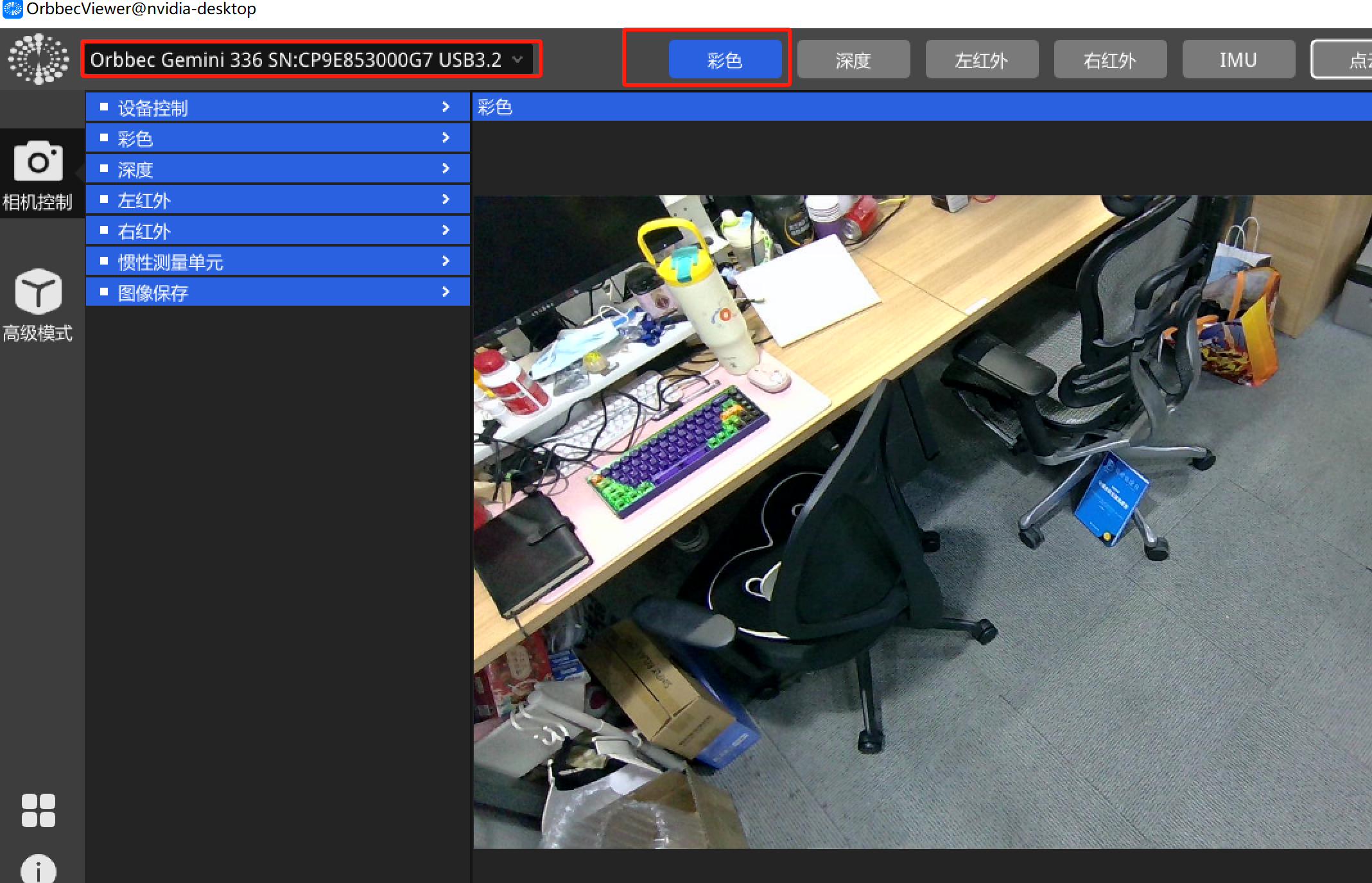
There is a notification in the upper-right corner of the OrbbecViewer pop-up window: ISP固件需要升级”
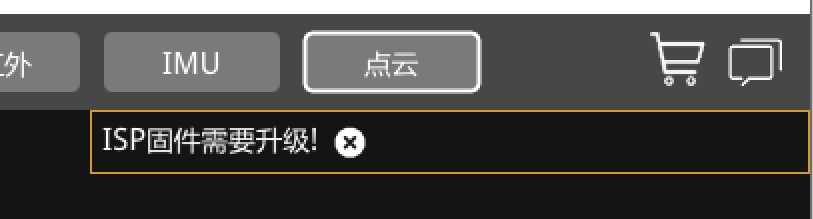
In this case, it is likely that the camera firmware version is incorrect.
You can try upgrading to a specific firmware version as follows (taking the Orin board at 192.168.41.2 as an example):
-
Still open OrbbecViewer as described above, then follow the steps below (note: first operate only up to step 3, after which you need to select the firmware file):
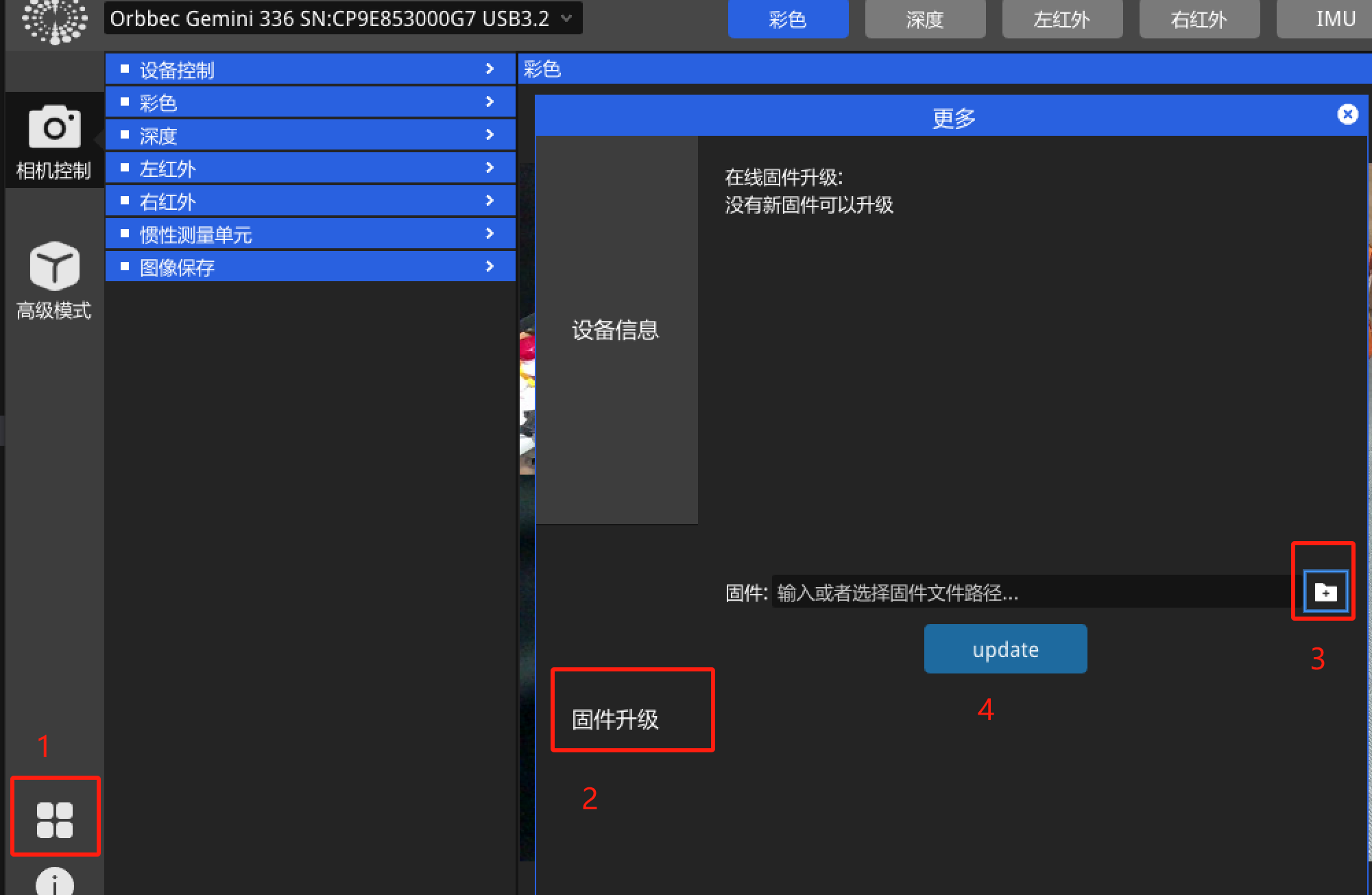
-
Select the firmware file:
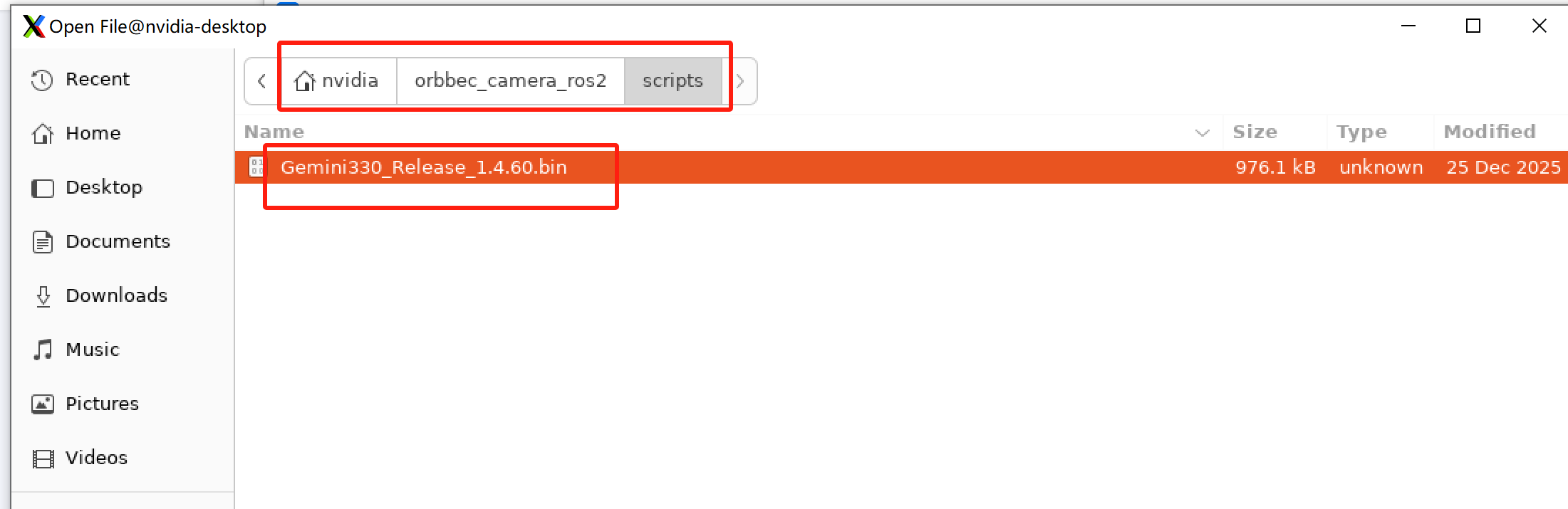
-
Click the button labeled “4” in the image for Step 1 to start the update. Wait for the update to complete, then try starting the camera service again.